
If your once-speedy computer now crawls through basic tasks, freezes without warning, or takes ages to boot up, you’re not alone. This PC performance optimization guide is built to help you diagnose exactly what’s slowing down your operating system and fix it without unnecessary complexity. We focus on practical, proven techniques drawn from years of hands-on system maintenance experience—no jargon, no fluff. Inside, you’ll find clear, step-by-step actions that address the root causes of lag, from quick performance wins to smart long-term habits that keep your OS running fast, stable, and responsive.
Immediate Impact: Quick Fixes for a Noticeable Speed Boost
Let’s start with the obvious suspect: startup bloat. When your PC boots, dozens of apps may launch automatically—cloud sync tools, chat apps, even that music player you forgot you installed. On Windows, open Task Manager > Startup. On macOS, head to System Settings > General > Login Items. Disable non‑essential programs (leave security software alone). Some argue startup apps save time because everything’s ready instantly. Fair—but shaving even 20–30 seconds off boot adds up fast (and your patience will thank you).
Next, clear digital debris. Temporary files, cached data, and outdated updates quietly eat storage. Use Disk Cleanup on Windows or Storage Management on macOS to remove safely what your system no longer needs. Critics claim modern systems “self-manage” storage. To a degree, yes. However, manual cleanup often frees gigabytes immediately, which improves load times—especially on nearly full drives (performance drops when storage maxes out, according to Microsoft support documentation).
Finally, restart—don’t just sleep. A restart clears RAM (random access memory, your system’s short-term workspace) and stops rogue background processes. Think of it as a reset button for sluggish behavior. Pro tip: schedule a weekly reboot. For more essentials, bookmark this PC performance optimization guide and keep your machine running like new.
Systematic Cleanup: Managing Software and Storage for Peak Efficiency
A sluggish PC rarely “just happens.” More often, it’s the result of neglected software, cluttered storage, and skipped updates (yes, that update you postponed three times).
Uninstalling Unnecessary Software
“Bloatware” refers to preinstalled or forgotten applications that consume disk space and system resources without delivering real value. Even when closed, many run BACKGROUND PROCESSES—small tasks operating behind the scenes that use memory (RAM) and CPU cycles.
On Windows, check Settings > Apps > Installed Apps to sort by size or last used date. On macOS, review System Settings > General > Storage. Removing unused programs frees storage and reduces startup load—meaning faster boot times and smoother multitasking.
Some argue extra apps don’t hurt if you have modern hardware. Technically true—but unnecessary startup services still increase boot latency and memory usage. Why let digital squatters live rent-free?
Optimizing Your Primary Drive
Your drive type matters:
- SSD (Solid State Drive): Uses flash memory, no moving parts, faster read/write speeds.
- HDD (Hard Disk Drive): Mechanical platters, slower but often higher capacity per dollar.
Modern operating systems automatically run TRIM for SSDs (which clears unused data blocks to maintain speed) and defragmentation for HDDs (which reorganizes fragmented files for faster access). Still, you can manually verify via Optimize Drives in Windows.
PRO TIP: Never manually defrag an SSD—it reduces lifespan without performance gains.
The Critical Role of Updates
Updates aren’t just about security patches. They include PERFORMANCE OPTIMIZATIONS, driver refinements (especially GPU drivers), and bug fixes that improve stability. NVIDIA and AMD frequently release graphics updates boosting frame rates in newly launched games (see manufacturer release notes).
If you’re serious about long-term system health, pair routine cleanup with a PC performance optimization guide and follow a step by step guide to updating firmware safely: https://dowsstrike2045.net/step-by-step-guide-to-updating-firmware-safely/
Efficiency isn’t futuristic—it’s disciplined maintenance.
Advanced Tuning: Fine-Tuning Your System’s Visuals and Hardware
Prioritizing Performance Over Polish
Modern operating systems love eye candy—animations, transparency effects, drop shadows. They look sleek (very sci‑fi command center), but they quietly consume CPU and GPU resources. If your system feels sluggish, head into Advanced System Settings (Windows) or Accessibility > Display (macOS) and disable nonessential visual effects.
On Windows, choose Adjust for best performance under Performance Options. On macOS, reduce motion and transparency. The result? A SNAPPY, RESPONSIVE interface that favors speed over style.
Some users argue visuals barely affect modern machines. And they’re not entirely wrong—on high-end hardware, the difference can be subtle. But on midrange or aging systems, trimming visual overhead can noticeably reduce lag. I’ll admit: exact gains vary widely by hardware and background processes (there’s no universal 20% boost promise).
Monitoring Resource Hogs
Open Task Manager (Ctrl+Shift+Esc) or Activity Monitor to see what’s eating your CPU and RAM.
Look for:
- High CPU percentages sustained over time
- Memory usage in the red zone
- Startup apps you don’t recognize
Shut down unnecessary apps and disable noncritical startup programs. Pro tip: Search processes before ending them—some system tasks look suspicious but are ESSENTIAL.
The Ultimate Performance Upgrades
If software tweaks aren’t enough, hardware matters. Replacing an HDD (Hard Disk Drive, which uses spinning disks) with an SSD (Solid-State Drive, flash-based storage) is often the SINGLE MOST impactful upgrade. SSDs reduce boot times dramatically and speed up file access (users routinely report major improvements; see data from Samsung and Crucial benchmarks).
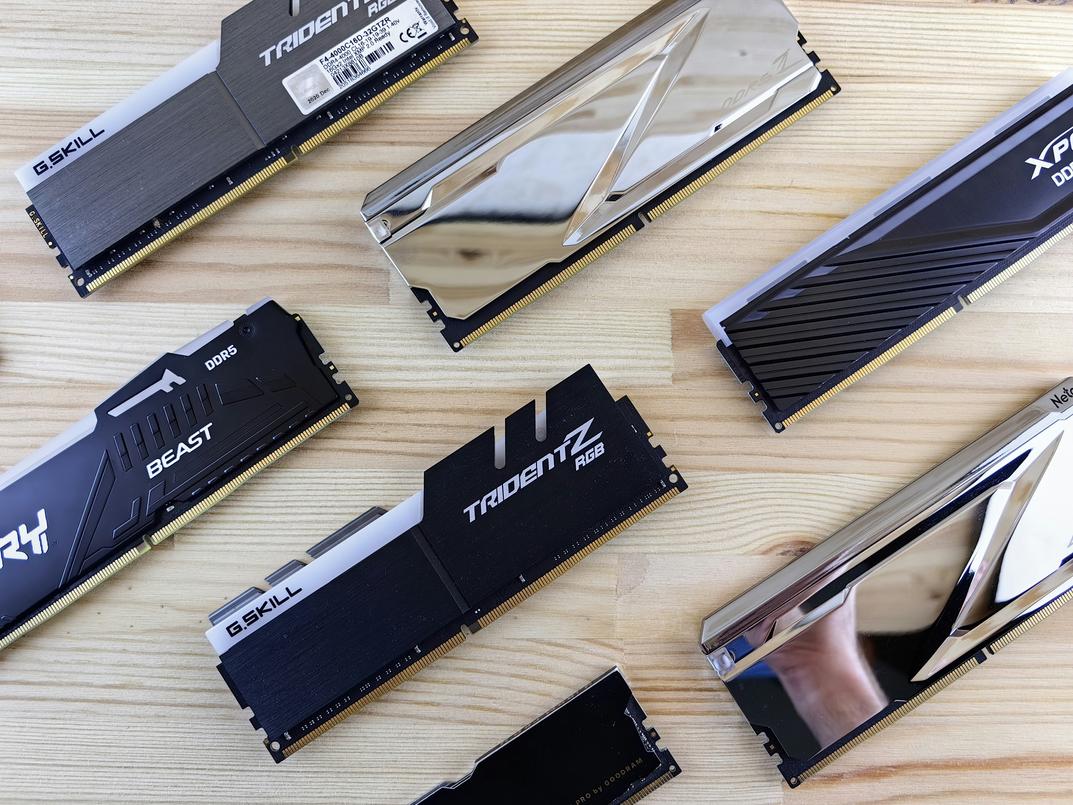
Adding more RAM improves multitasking by reducing reliance on slower disk swapping. That said, beyond 16–32GB for typical users, benefits may plateau—it depends on workload.
For a deeper breakdown, consult a reliable PC performance optimization guide before investing.
Building a Proactive Maintenance Routine
First, schedule weekly security scans. Malware (malicious software) and viruses quietly hog memory and CPU power, slowing everything down. Think of them as digital gremlins—cute in movies, disastrous in real life. Use a reputable antivirus tool and automate scans every week; consistency beats panic-cleaning.
Next, practice digital hygiene. That means organizing files into folders, clearing your desktop, and emptying the recycle bin regularly. Clutter forces your system to work harder (yes, even computers hate mess).
Pro tip: pair these habits with a trusted PC performance optimization guide to stay ahead of slowdowns for long-term stability.
Sustaining a Faster, More Responsive Computing Experience
You came here looking for real solutions to a sluggish system—and now you have a complete PC performance optimization guide to make that frustration a thing of the past. A slow computer isn’t something you have to tolerate. By reducing the strain on your processor, memory, and storage, these strategies directly target the root of performance issues.
Start with the quick fixes today for an immediate speed boost, then schedule a monthly system check-up to keep everything running smoothly. Don’t let lag steal your productivity—take control now and keep your computer performing at its best.